New to map files?
Start with a small map of a familiar place. Check the file first, then choose your device and follow the import steps.
Try the practice map → MapNero
YOUR MAPS IN THE FIELD
Import a georeferenced PDF map into MapNero on iPhone or Android. Open the map, check where it sits and use it alongside your field records.
Download free. Import options and limits depend on the file format, platform and plan. See the guides below before choosing a subscription.
See how to import your map ↓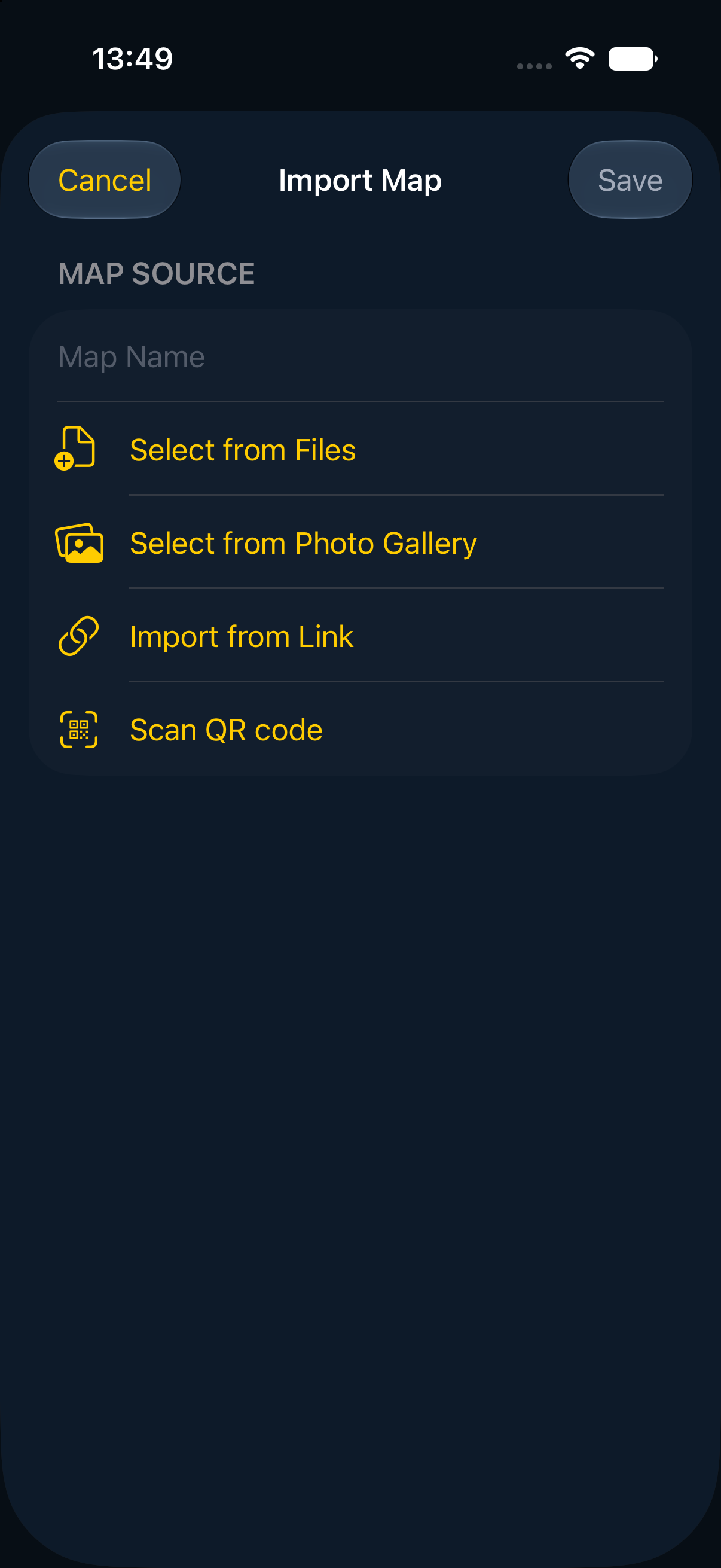
Start with a small map of a familiar place. Check the file first, then choose your device and follow the import steps.
Try the practice map →Have a georeferenced PDF ready? Go straight to your device’s import steps. Check the map’s position and test it offline after import.
Go to import steps →TRY A SMALL FILE FIRST
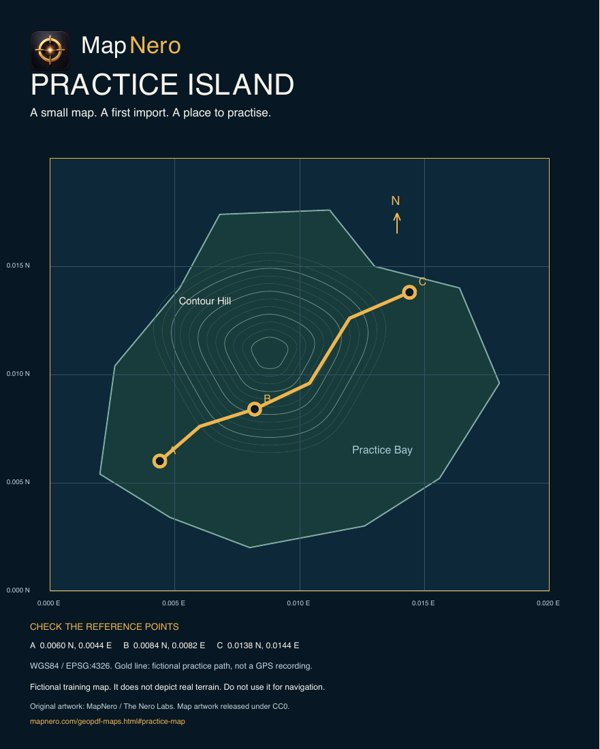
Download a 52 KB, one-page GeoPDF and follow the import steps below. It contains an original fictional island with three printed reference points.
This is a fictional training area near 0° N, 0° E, not real terrain. Your GPS position will usually be outside it. Do not use it for navigation.
After import, open the map and compare points A, B and C with their printed coordinates. Reopen it without a network. Download any basemap region separately.
BEFORE YOU START
A GeoPDF includes information that places the map in the real world. A regular PDF may only contain a picture of a map. Opening that file does not establish where your GPS position belongs on it.
Use a map with valid georeferencing and check a known location after import. If your position appears outside the map, compare it with the Base Map and check the source file.
CHOOSE YOUR DEVICE
You can also open a supported file from the Files app with MapNero. Multi-page PDFs require Pro on Apple platforms.
Open the Apple import guide →You can also select a supported file in Downloads or Files and use Open with MapNero.
Open the Android import guide →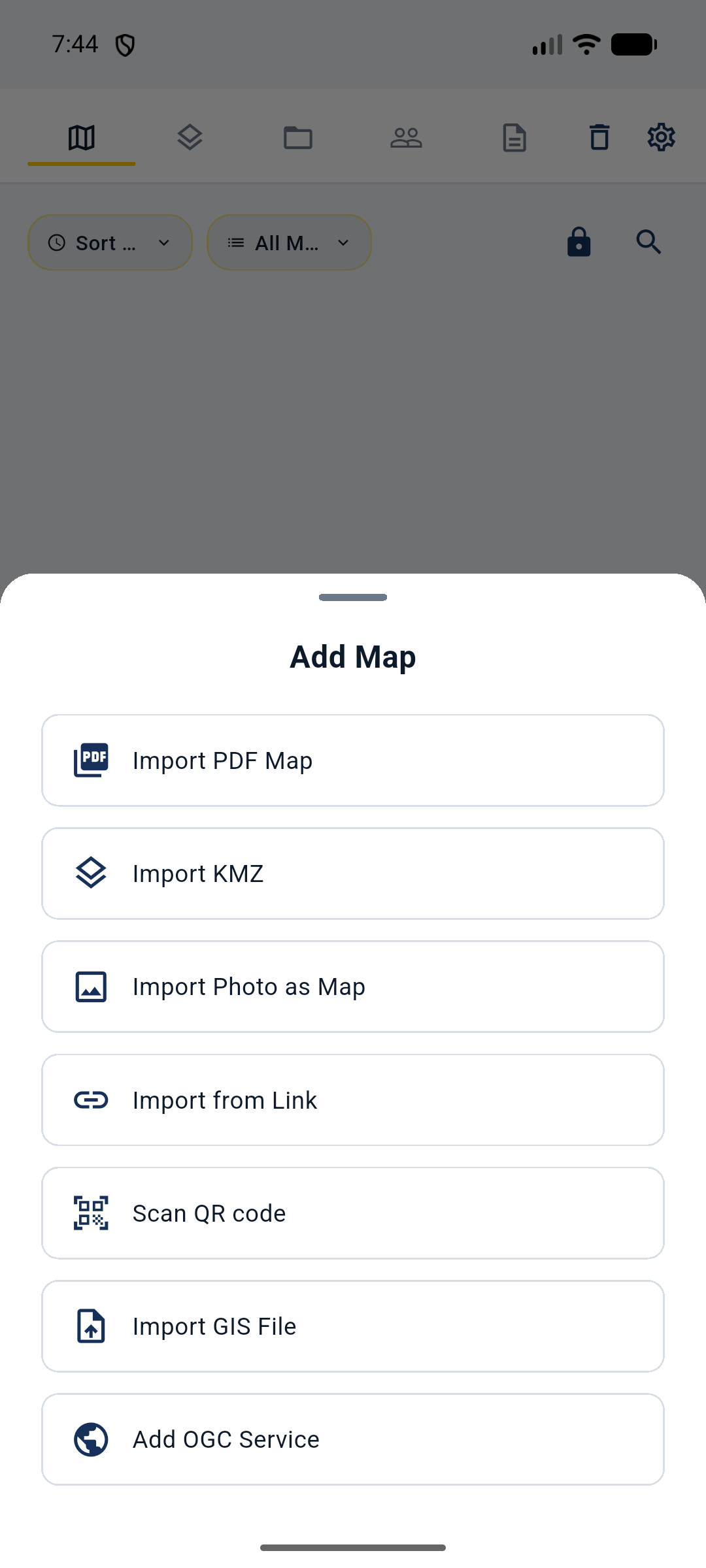
PREPARE BEFORE LEAVING COVERAGE
Finish importing your file while you have access to it. Turn on Airplane Mode, reopen the map and check the area and detail you need. If you also need a basemap region, download and test that region separately before leaving coverage.
Check that the file finished importing and that the view is within its geographic bounds. A missing basemap download is a separate issue from a local PDF import.
The Apple guide includes manual image referencing with Core or higher. It requires at least three well-spaced, non-collinear control points with known coordinates. Read the photo referencing guide before starting.
Compare the map against a known position first and retain the original file and your saved records. The import guides describe reimporting an older PDF so the current georeference parser runs. Check those steps before replacing an imported copy.
Saving a scan as a PDF does not give it geographic coordinates. Manual image referencing can align known points, but it does not straighten local bends or folds in the paper. Check other landmarks across the map that you did not use as control points. A good fit at the selected points does not prove accuracy elsewhere. Treat a distorted map as approximate.
Have your PDF ready, choose your device and follow the import guide.